
Sheets
Learn how to view and manage your workflow data in sheets.
Sheets are where your workflow data is stored. When participants complete forms in a session, their responses are saved to a sheet. Think of sheets as spreadsheets that automatically collect data from your workflows.
The Sheets Page
Navigate to Sheets from the sidebar to see all sheets in your workspace.
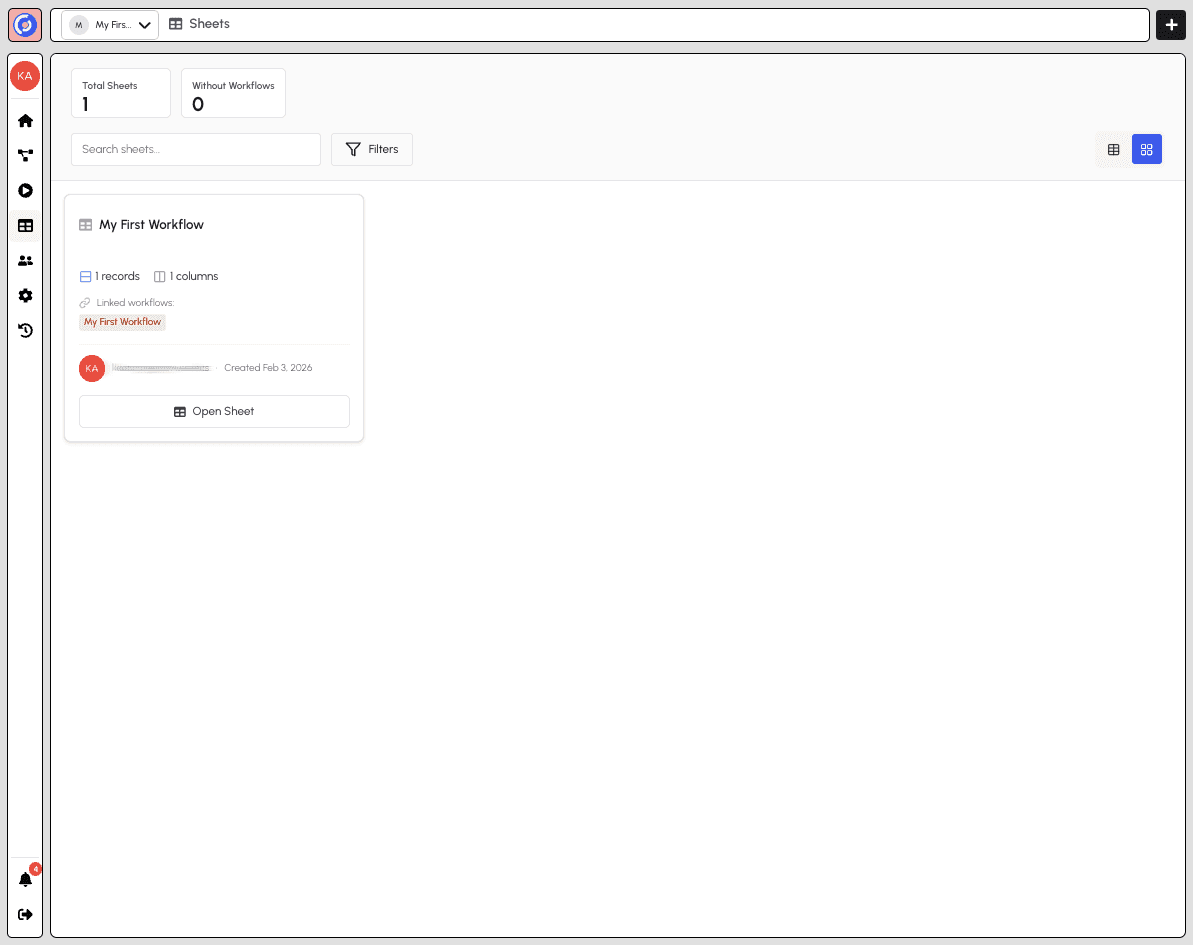
The sheets page shows:
- Total Sheets - Number of sheets in your workspace
- Without Workflows - Sheets not linked to any workflow
- Sheet cards - Each card displays:
- Sheet name
- Number of records and columns
- Linked workflows
- Creator and creation date
- Open Sheet button to view the data
Viewing a Sheet
Click Open Sheet to view the sheet's data in a table format.
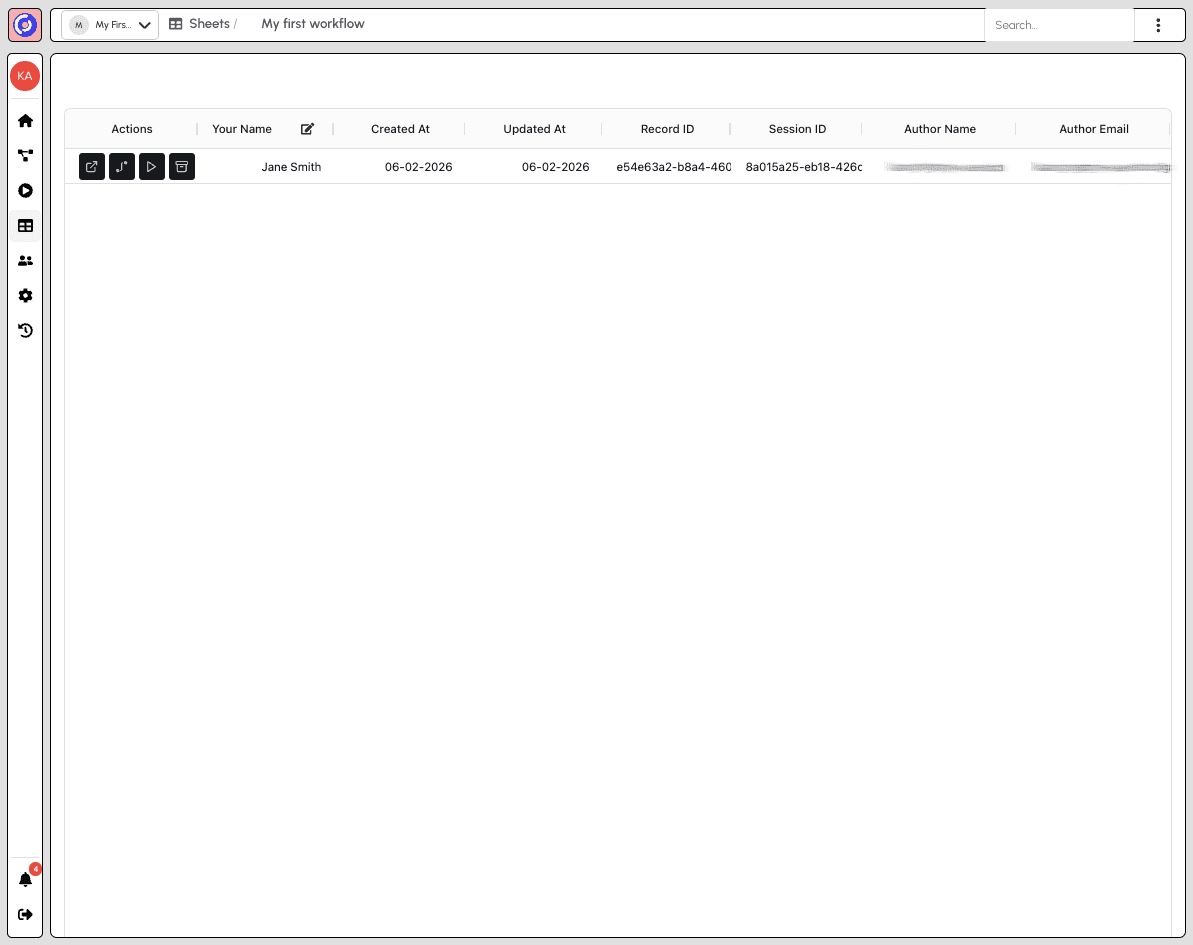
The sheet view displays:
- Breadcrumb navigation - Shows your location (Sheets / Sheet name)
- Search - Filter records by searching
- Data table - All records displayed in rows with columns for:
- Actions - Quick actions for each row (edit, open record, go to workflow/session, archive)
- Form fields - Columns for each field in your workflow (e.g., "Your Name")
- Metadata columns - Created At, Updated At, Record ID, Session ID, Author Name, Author Email
You can drag column headers to reorder them as needed.
Sheet Options
Click the three-dot menu in the top-right corner to access sheet options.
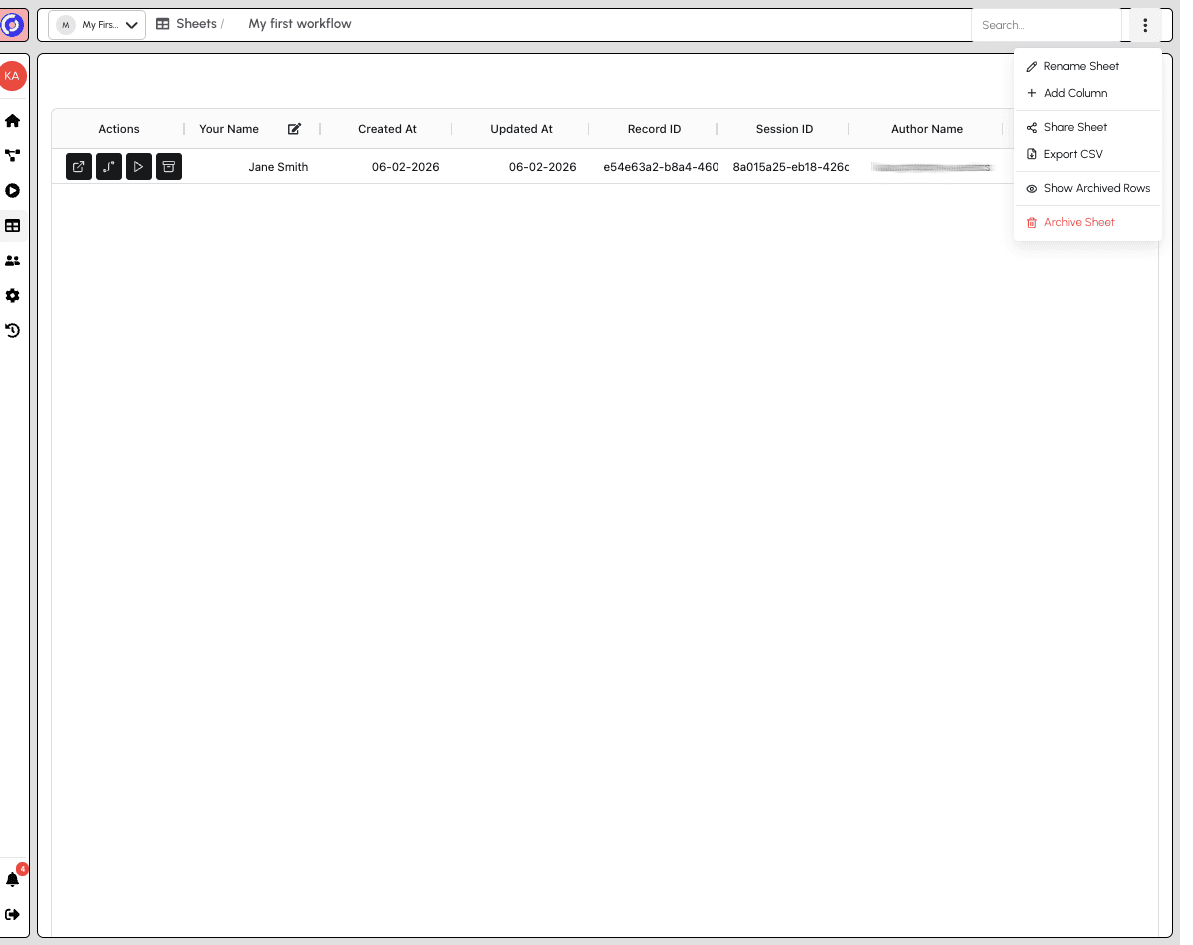
Available options:
- Rename Sheet - Change the sheet's name
- Add Column - Create a new column for additional data
- Share Sheet - Share the sheet with others
- Export CSV - Download the sheet data as a CSV file
- Show Archived Rows - View rows that have been archived
- Archive Sheet - Archive the entire sheet (shown in red as a destructive action)